How To Create The Ghost Out of Body Experience Effect in After Effects
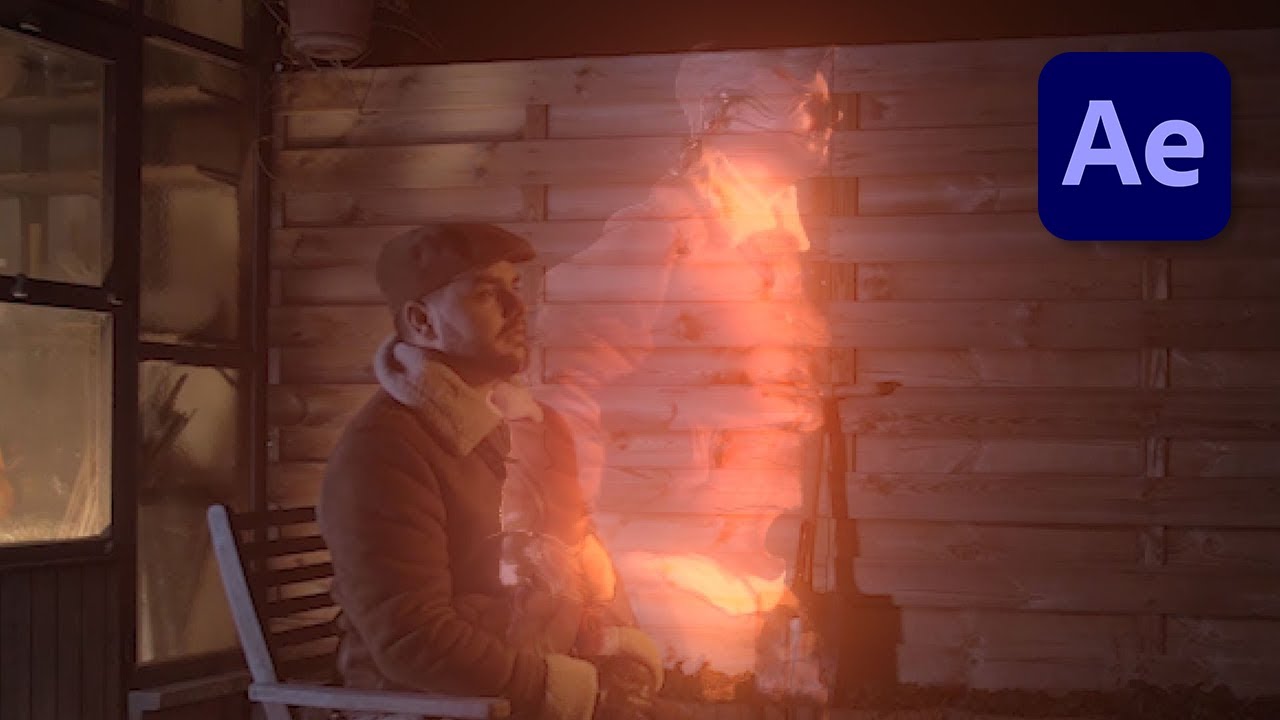
Creating an Out of Body Experience Effect with After Effects
In this tutorial, we will show you how to create an out-of-body ghost effect using Adobe After Effects. Follow these steps to achieve this supernatural visual effect.
**Step 1: Prepare Your Footage**
Download the footage provided in the tutorial or shoot your own. You will need two videos shot in the same environment and perspective:
Download the footage provided in the tutorial or shoot your own. You will need two videos shot in the same environment and perspective:
- One where you are in a steady position
- Another where you seem like you are getting out of your body
**Step 2: Create a New Composition**
Drag your footage into a new composition. Arrange the layers so that the steady position footage is below the out-of-body footage.
Drag your footage into a new composition. Arrange the layers so that the steady position footage is below the out-of-body footage.
**Step 3: Use Time Remapping**
Apply time remapping to both footage layers by right-clicking on the layers and selecting **Time** > **Enable Time Remapping**. Adjust the keyframes to sync the movement of your out-of-body footage with the steady footage.
Apply time remapping to both footage layers by right-clicking on the layers and selecting **Time** > **Enable Time Remapping**. Adjust the keyframes to sync the movement of your out-of-body footage with the steady footage.
**Step 4: Key Out the Ghost Effect**
Apply a **Luma Key** or **Color Key** effect to the out-of-body footage layer to key out the ghost effect. This will isolate the out-of-body figure from the background.
Apply a **Luma Key** or **Color Key** effect to the out-of-body footage layer to key out the ghost effect. This will isolate the out-of-body figure from the background.
**Step 5: Pre-compose the Layers**
Pre-compose the out-of-body footage layer by selecting the layer and going to **Layer** > **Pre-compose**. Name the new composition "Ghost Effect".
Pre-compose the out-of-body footage layer by selecting the layer and going to **Layer** > **Pre-compose**. Name the new composition "Ghost Effect".
**Step 6: Add Dimension with Alpha Matte**
Add dimension to the ghost effect by using the alpha matte. Create a solid layer and place it above the "Ghost Effect" composition. Use the **Track Matte** option to set the "Ghost Effect" layer as the alpha matte.
Add dimension to the ghost effect by using the alpha matte. Create a solid layer and place it above the "Ghost Effect" composition. Use the **Track Matte** option to set the "Ghost Effect" layer as the alpha matte.
**Step 7: Adjust Opacity and Effects**
Adjust the opacity of the "Ghost Effect" layer to make the out-of-body figure appear more ghost-like. Apply effects such as **Glow** and **Blur** to enhance the ethereal appearance.
Adjust the opacity of the "Ghost Effect" layer to make the out-of-body figure appear more ghost-like. Apply effects such as **Glow** and **Blur** to enhance the ethereal appearance.
**Step 8: Fine-Tune and Render**
Make final adjustments to the timing, opacity, and effects to ensure the out-of-body experience looks seamless and realistic. Once satisfied, render your composition.
Make final adjustments to the timing, opacity, and effects to ensure the out-of-body experience looks seamless and realistic. Once satisfied, render your composition.
For a detailed, step-by-step guide on creating the out-of-body ghost effect using Adobe After Effects, watch the full video tutorial.